Go live on your new POS system in as little as 48 hours
Go live with your new POS in 48 hours
No matter the industry. We make it easy.
 your venue needs
 powerful POS
Retail Systems brings together SwiftPOS software, commercial-grade hardware, EFTPOS, inventory, promotions and reporting into one unified platform -built to run hospitality and retail venues at scale.
Get expert help from technicians who work in your area.
Track stock in real time across every store and channel.
EFTPOS fully integrated to your POS to provide mistake free, secure payment processing


See sales, profits and trends as they happen.
Serve more customers with fewer taps and faster checkout.
Retail Systems brings together SwiftPOS software, commercial-grade hardware, EFTPOS, inventory, promotions and reporting into one unified platform -built to run hospitality and retail venues at scale.
Control everything behind the scenes - products, pricing, stock, staff and reports - from a powerful cloud-based back-office.
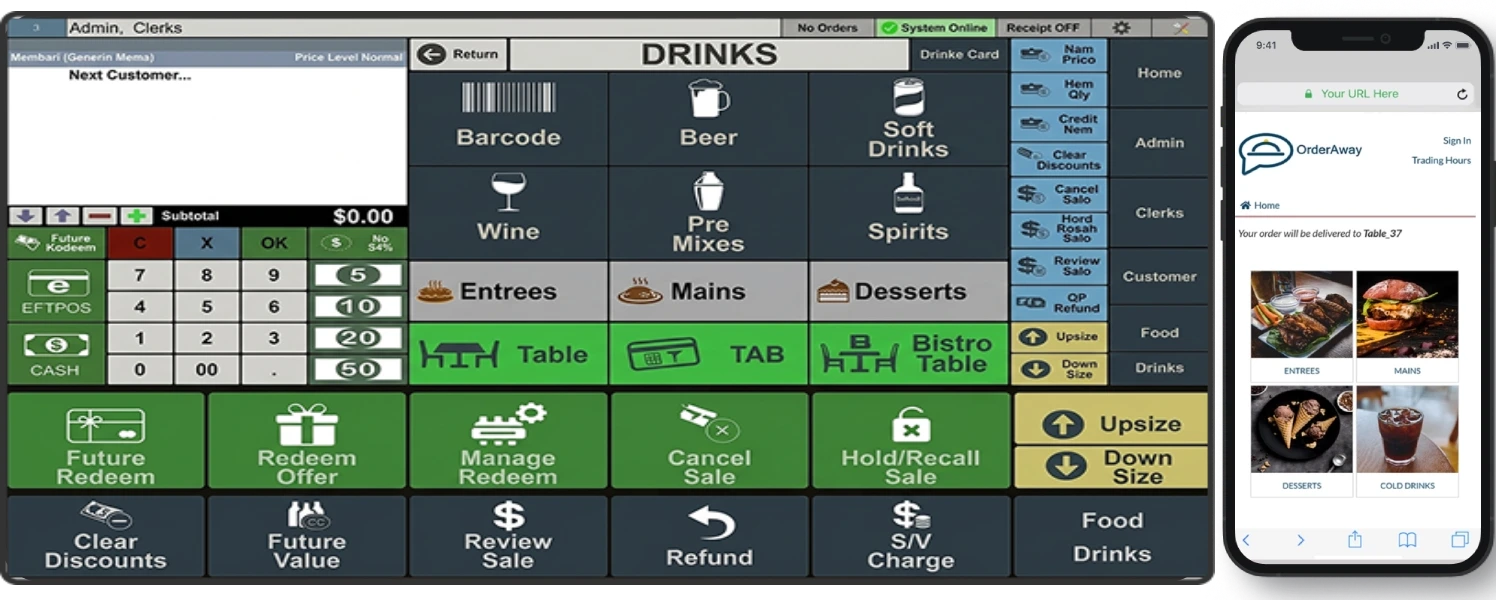
Designed for busy venues, SwiftPOS at the counter is fast, simple and built for high-volume trading.
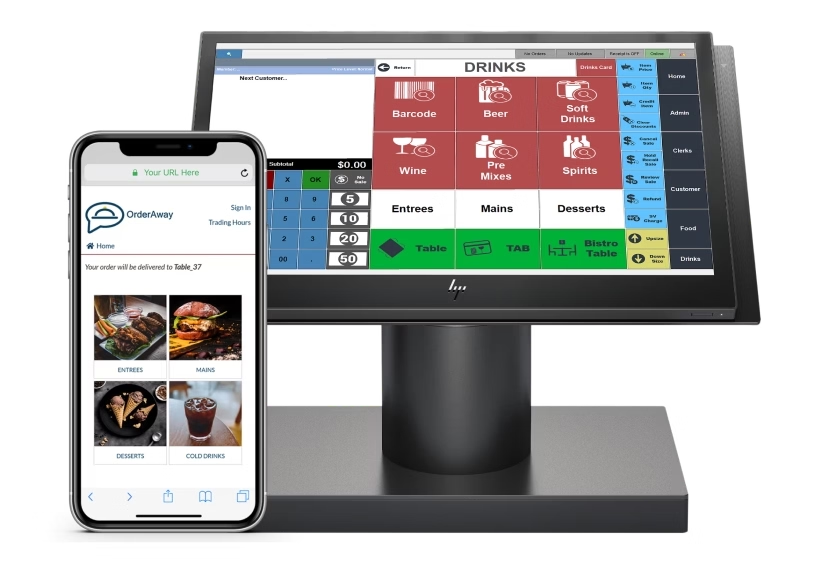
Speed up every transaction with intuitive POS screens, fast product search, split bills and fully integrated EFTPOS – designed to keep lines moving and revenue flowing.
Track stock across locations, automate reorders, manage suppliers and reduce waste with live inventory syncing from every sale.
Accept tap, chip, QR and online payments with fully integrated Tyro, PC-EFTPOS and more – with secure settlement and daily reconciliation built in.
Set user roles, track sales by staff, manage shifts and prevent fraud – all from one central system.
View sales, profit, stock levels and staff performance in real time – across one store or dozens – from desktop or mobile.
 POS system
  RETAIL SYSTEMS
Powerful, customisable POS systems designed for hospitality, retail and multi-venue businesses.
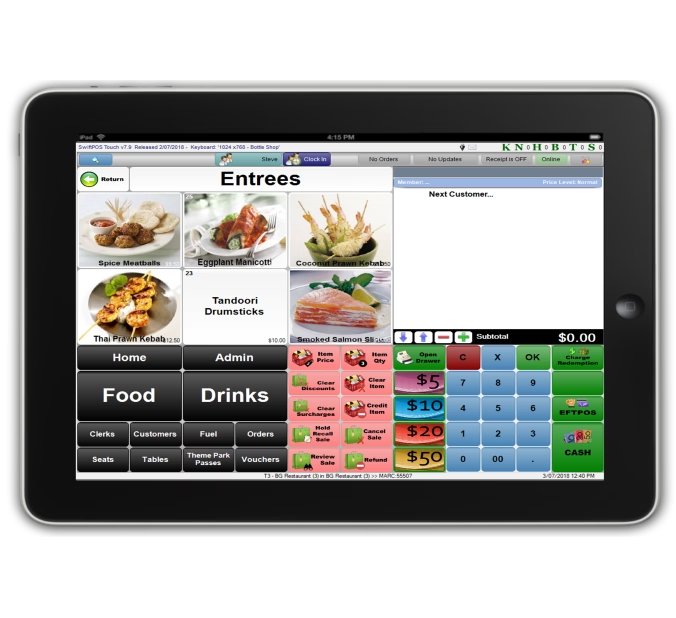
Fully integrated payments including Oolio Pay, Tyro and PC-EFTPOS for fast, secure transactions.
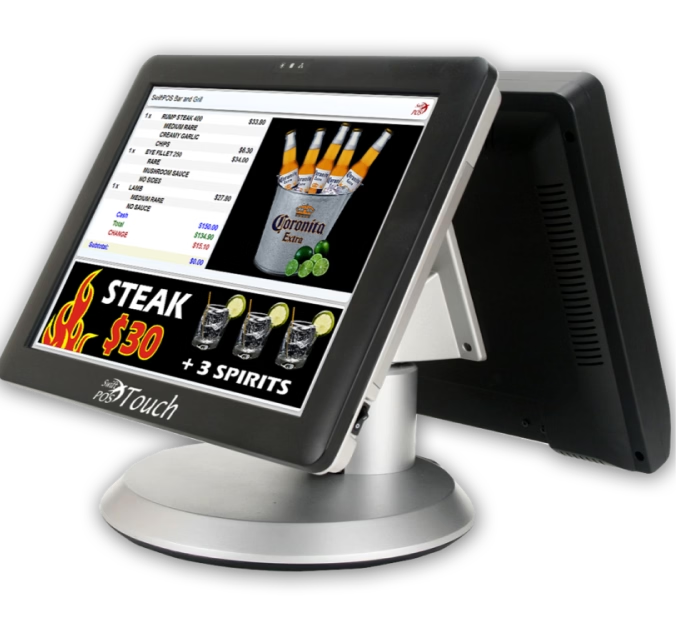
Touchscreens, printers, cash drawers, scanners and mobile POS -all supplied and supported by us.
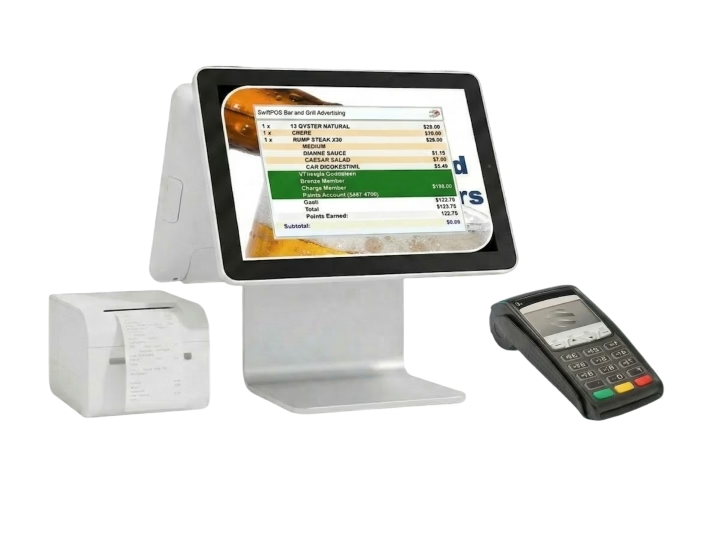
Manage products, pricing, staff, stock and reporting across every location from one system.
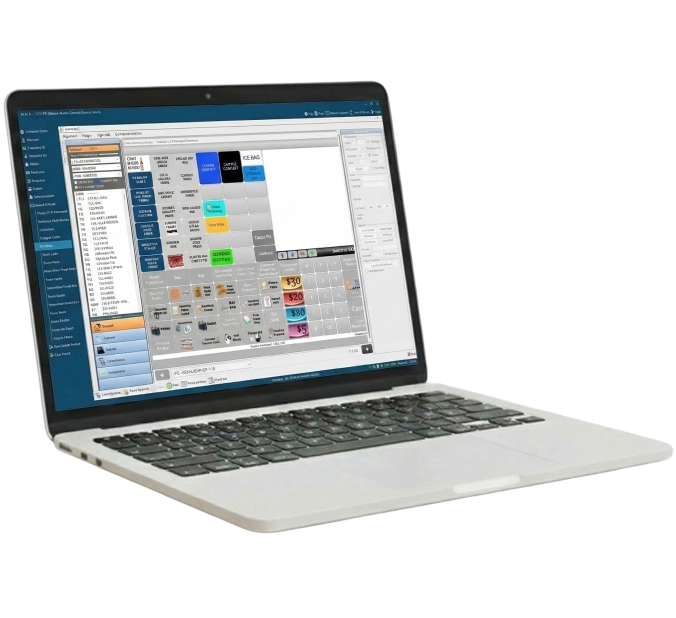
Tables, split bills, kitchens, happy hours
We recommend the best software, hardware & payments based on how your venue operates.
We deliver, set up and configure your full POS system on-site -including training.
From installation to ongoing support, we're with you every step of the way.
Symptom:
Most of the reports are returning a message that says “No data to Display” when trying to preview them. There is definitely data within the specified date range.
Cause:
a) The most likely cause of this problem is that the tills are no longer connected to Back Office – you might see a red Offline in the top right of the screen.
b) Or the appropriate Clerk Groups have not been assigned to the correct Location Groups after setting up a new database.
Solution:
a) i) Make sure you have a network connection or at least the internet is working. Maybe reboot the Internet Router
ii) On the BackOffice server, check that Services at the bottom right of the SwiftPOS screen are Green. If not green, right mouse click on C, and press Start. If this doesn’t work, call us
b) Or, you need to assign the all Clerk Groups to the Head Office Location Group to ensure all data is displayed in the reports. Follow these instructions to assign a clerk group to a location group:
Symptom:
An error message keeps appearing behind the splash screen when SwiftPOS is first loading and stops the login screen from being displayed. After closing the error message SwiftPOS closes completely.
Cause:
Sometimes an XML used by SwiftPOS when starting up, becomes corrupt. This problem is more likely to occur when you are using SwiftPOS with multiple servers/databases.
Solution:
To fix this problem all you need to do is delete the XML file that SwiftPOS uses when starting up. By default this file will be in your C:\Documents and Settings\<username>\Application Data\Samford Software and is called SQL.xml. The next time SwiftPOS loads it will create a new SQL.xml file and you will be able to successfully log into SwiftPOS. Please note that you will need to enter your SQL server login details again to enable access to the database.
Registry settings for POSReady Connection Settings C:\Documents and Settings\All Users\Application Data\Samford Software\BackOfficeSQL.INI
Registry settings for Windows 7 (and higher) – C:\ProgramData\Samford Software\BackOfficSQL.INI – rename this file will allow you to create a new log-in for your existing database.
Symptom:
The SwiftPOS application suite has been updated to the latest version and a problem still exists that is reported as being fixed.
Cause:
It is possible that a stored procedure was not updated correctly when the database was updated.
Solution:
The first thing to try in a situation such as this is to reset the database and upgrade it again. Please note that this functions can be performed on any database and will not effect the data within:
Symptom:
An access denied error appears every time one of the menus is attempted to be opened. This is occurring immediately after logging into a new or re-imported database.
Cause:
This error message appears because the appropriate security permissions have not been setup for the default clerk.
Solution:
This problem is fixed simply by assigning all security permissions to the default clerk:
From the command prompt (as administrator) run a netstat -n or -b to ascertain the ports in use.
The problem is in c:Windows\assemblytmp\???????dznet.dll. Rename the dznet.dll from the command prompt.
This is done while the install is running, there can be multiple ??????? files, it is usually the most recent that needs to be renamed.
Once the file is renamed, click retry on the install.
I’ve running the installation file with Windows admin account already. However for some reason the folder and the dznet.dll are still missing
C:\Windows\assembly\GAC\dznet\5.0.0.7__060029c4f7659a4d
I copied it from other device and problem solved.
If a No Sale is performed at the time, to perhaps fire Cash Drawer 2 (since this is triggered via the receipt printer), this may be pointing to a printer driver issue.
As well as the list below, errors can also be attributed to out-dated sound and video drivers.
The following conditions can cause Kernel32.dll error messages:
Damaged swap file
File allocation damage
Damaged password list
Damaged or incorrect version of the Kernel32.dll file
Damaged registry
Hardware, hot CPU, over clocking, broken power supply, RF noise, ground bounce, or bad hard disk controller
BIOS settings for Wait states, RAM timing, or other BIOS settings
Third-party software that is damaged or incorrectly installed
.dll files that are saved to the desktop
Non-existent or broken Temp folder
A control panel (.cpl) file is damaged
Incorrect or damaged hardware driver
Incorrectly installed printer drivers or HP Jetadmin drivers
Damaged Java Machine
Damaged .log files
Damaged entries in the History folder
Incompatible or damaged dynamic link library files
Viruses
Damaged or incorrect Msinfo32.exe file
Low disk spac
Also ensure all Windows updates have been applied and repair of .NET Framework is performed www.microsoft.com/en-us/download/details.aspx?id=30135

Can’t find the answer you’re looking for? Please chat to our friendly team.
